
See what's running and who it talks to
On one computer
- Open the computer’s host page.
- Click the Processes tile. On Windows you get every running program with its command line, user, start time, file hash and whether the file is signed, and by whom.
- Click the Network connections tile. You get every open connection and listening port, with the program that owns it.
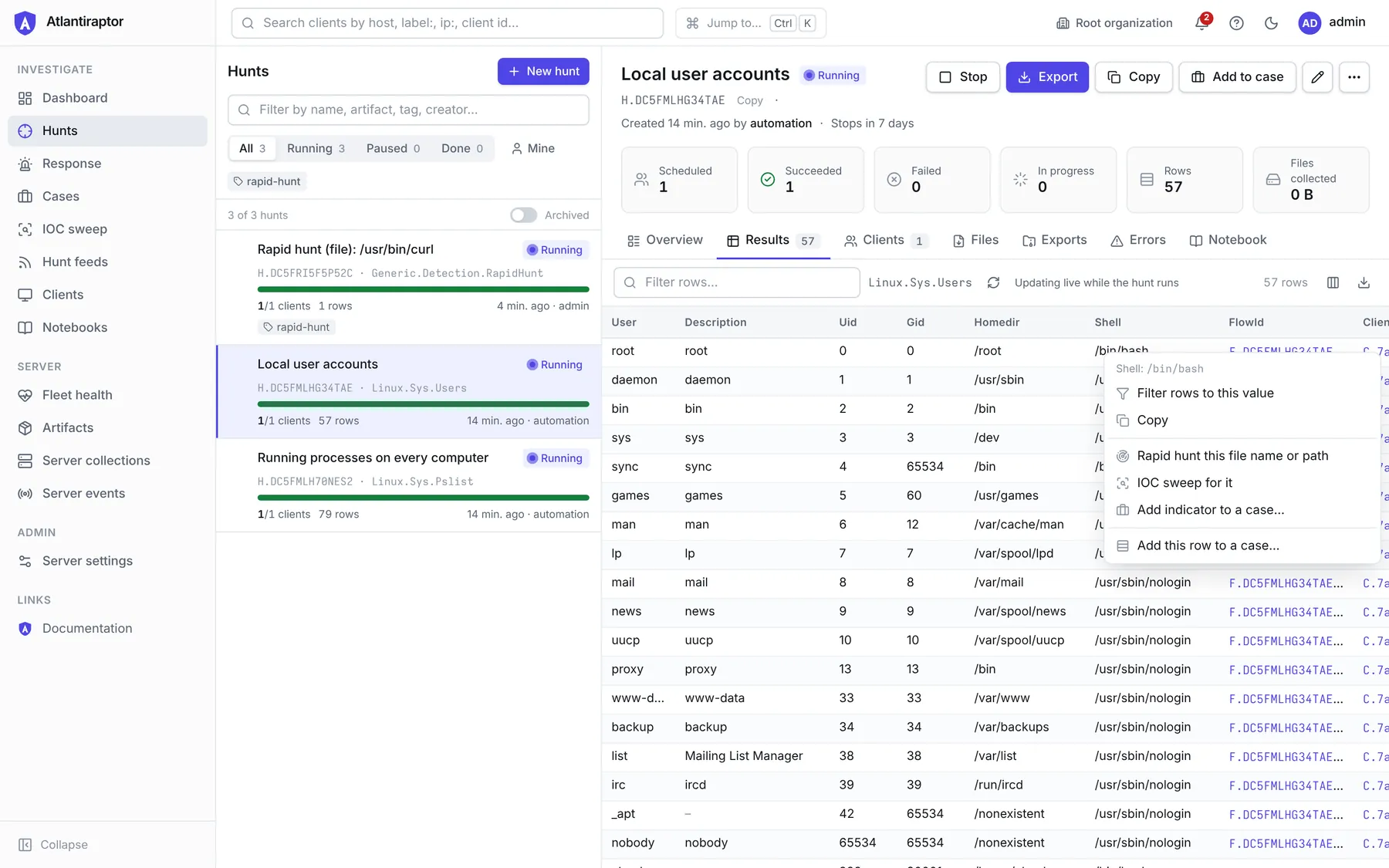
Open the result under Recent collections. In the table:
- type in the filter box above a column to narrow it down, for example
powershellin the name column, - click a column title to sort by it,
- click any value, such as a hash or a remote IP address, to hunt for it on all computers or copy it.
Full triage on the host page does both at once and flags the programs that are worth a look.
On every computer
To list the programs running everywhere, for example to find every computer that runs a remote access tool:
- Open Hunts and click New hunt.
- Search for
Pslistand selectWindows.System.Pslist(andLinux.Sys.Pslistfor Linux computers). - Keep All clients and click Create and start hunt.
The hunt’s Results tab shows the programs from all computers in one table, with the computer’s name on each row. See Ask every computer the same question.
If you only want to know whether one program runs anywhere, a Rapid hunt for its name is quicker.
What to do next
- A program you don’t trust: kill it, or capture its memory first.
- A computer talking to a bad address: quarantine it.