
Collecting from a client
A collection runs one or more artifacts on one client (or on the server) once. Quick triage tiles, the shell, Rapid hunt answers and hunts are all made of collections. This page covers starting your own.
Starting a collection
- Open the client (search for it), then Collections in the Client part of the sidebar.
- Click Collect.
- Search for artifacts by name or description and select one or more. Filters narrow the list by operating system and category.
- Set parameters for each artifact. Every parameter has a default; Reset parameters to defaults undoes your changes.
- Optionally set resources: timeout, maximum rows, maximum upload size and CPU limit (see Performance). Urgent skips the client’s queue of other collections.
- Click Collect now.
If the client is online, it starts within seconds. If it is offline, the collection waits and runs when the client next connects.
To run artifacts on the server itself (server artifacts, cloud hunts), use Server collections in the sidebar the same way.
Following a collection
The collections list shows each collection’s artifacts, state, creator, start time and how much it returned. A running collection updates live. Open one to see:
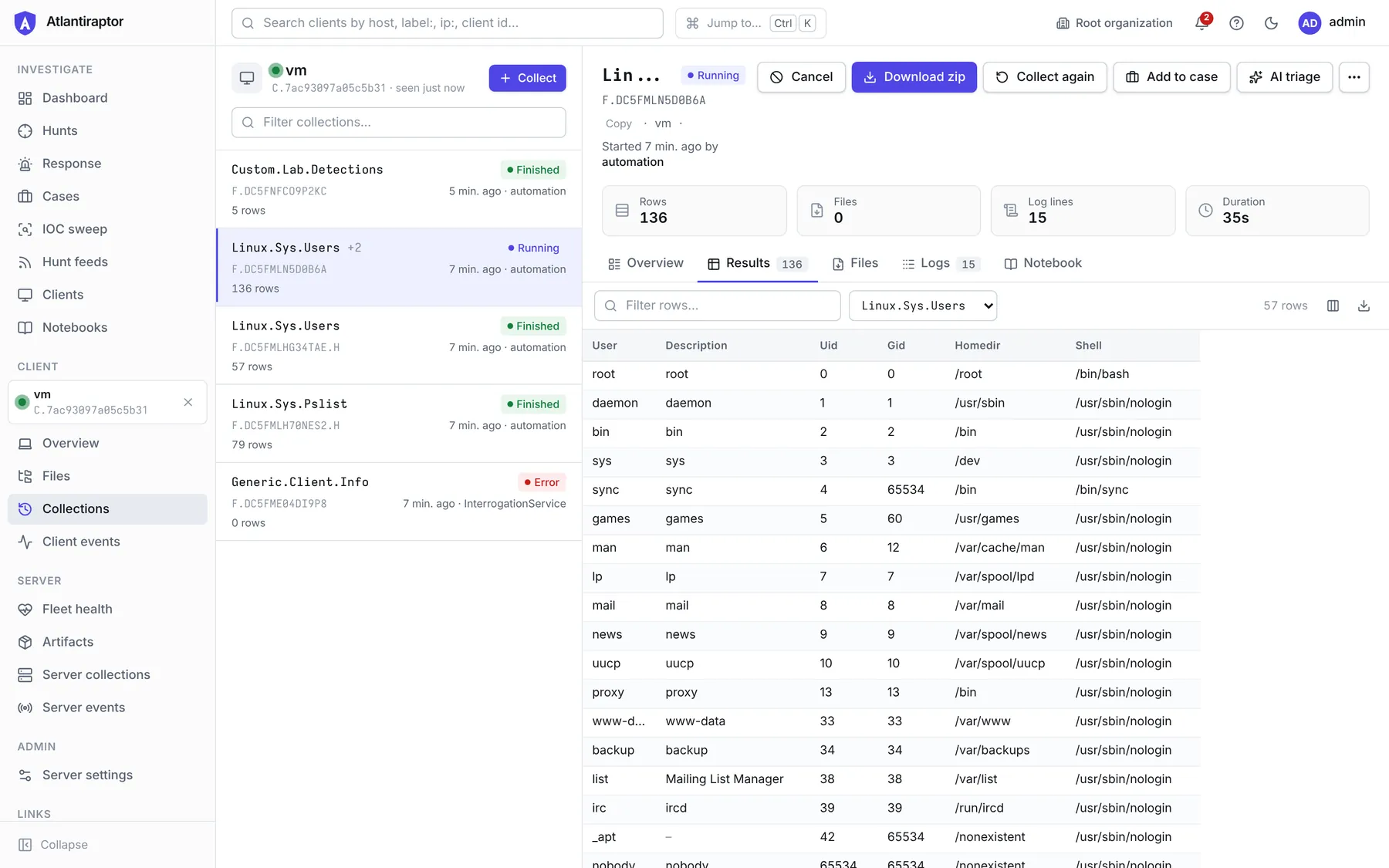
- Overview: the request (artifacts, parameters, resources), state, duration, rows and bytes uploaded, and any error.
- Results: one table per artifact source. Sort, filter and pivot on values as anywhere in the console (see Pivoting).
- Files: files the collection uploaded, with their size and hashes. Download one, or all of them as a zip.
- Log: what the client did, query by query. Check it first when a collection returns nothing.
- Notebook: a notebook for this collection, prefilled with a cell per source, for analysis with VQL.
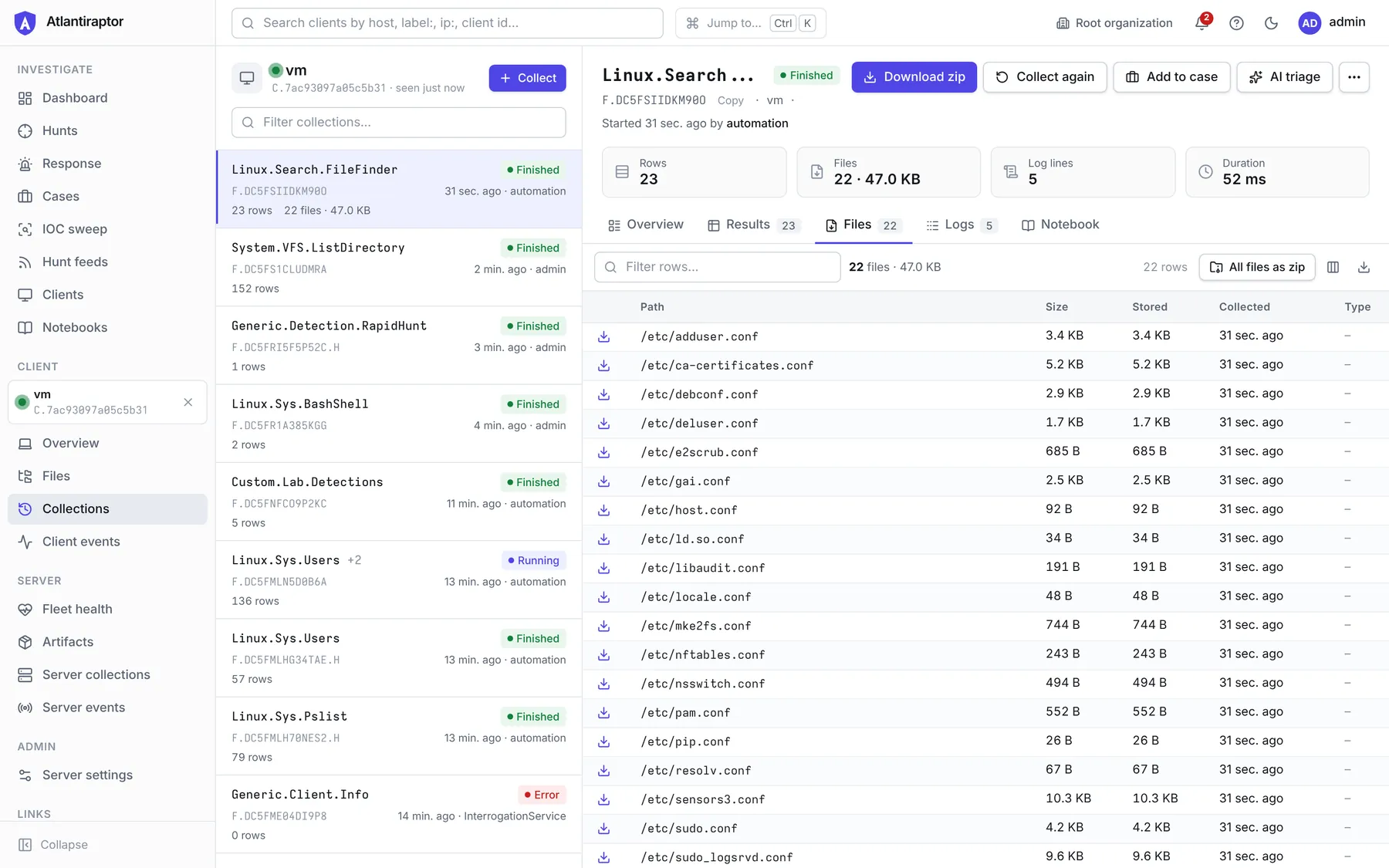
Cancel stops a running collection; results already sent are kept. Collect again starts a new collection with the same artifacts and parameters, which is handy for comparing before and after.
Downloading results
- All files as zip builds a zip with every result, log and uploaded file of the collection, and downloads it when ready. Large collections take a moment; you can keep working.
- Password-protected zip, using your downloads password, keeps malware samples from being deleted by antivirus.
- Results as CSV or JSON: from the results table’s export menu.
Exports are kept on the server with the collection. See Exporting evidence for formats and for importing collections from other servers.
Favorites
If you often collect the same set of artifacts with the same parameters, save it as a favorite from a finished collection. Favorites appear at the top of the artifact picker.
Deleting collections
Select a collection and Delete to remove it and its data from the
server (needs the DELETE_RESULTS permission). See
Storage and data retention.
Collecting with VQL or the API
- In a notebook or server artifact:
collect_client(client_id="C.123",
artifacts=["Windows.System.Pslist"])
. - From a SIEM or script:
POST /api/atl/v1/collections(read-only artifacts) in the integration API, or the gRPC API.