
Notebooks
A notebook is a shared workspace for an investigation: a list of cells that mix notes (Markdown) with live VQL queries over the data you collected. Every collection and hunt has its own notebook, and you can create standalone ones for a whole case.
Notebooks for collections and hunts
Open a collection or a hunt and select the Notebook tab. It starts with one cell per artifact source, already querying that source’s results. Edit those queries to filter, count, join or stack the results. The notebook is saved with the collection or hunt.
Standalone notebooks
Open Notebooks and click New notebook. Give it a Name (for example “Lateral movement on FIN-SRV-02”), a Description, and:
- Collaborators: users who can see and edit it, or
- Visible to everyone in this organization to make it public.
A notebook is Private (only its creator and collaborators) unless you make it public. Change these under Settings later.
Cells
Add a cell from the bar between cells or a cell’s menu (Insert, above or below). There are three kinds:
| Cell | Contains |
|---|---|
| VQL | A query. Its results appear as a table under it |
| Markdown | Notes, headings, lists, links and images. Markdown cells can also embed query results (see below) |
| Artifact | An artifact definition you are writing or testing |
Click a cell (double click a Markdown cell) to edit it, then Run it (or Save a Markdown cell) with Ctrl+Enter. Run again re-runs a VQL cell, for example after new results arrive; Stop cancels a running one. Cells can be moved up and down, formatted, copied and deleted. Some notebooks offer Suggestions: ready-made cells for the data they hold.
VQL cells
A VQL cell runs on the server, over data already collected. It does not
collect anything new from clients unless you call a function that does
(such as collect_client()). Useful sources:
-- One collection's results
SELECT * FROM source(client_id="C.1a2b3c4d5e6f7a8b",
                     flow_id="F.CQ7K2V8E9N2A4",
                     artifact="Windows.System.Pslist")

-- All results of a hunt
SELECT * FROM hunt_results(hunt_id="H.CQ7K3B1P4M6D2",
                           artifact="Windows.System.Pslist")

-- Monitoring data for the last day
SELECT * FROM source(client_id="C.1a2b3c4d5e6f7a8b",
                     artifact="Windows.Events.ProcessCreation",
                     start_time=now() - 86400)
In a collection’s or hunt’s notebook, source() with no IDs reads that
collection or hunt.
New cells add LIMIT 50 to their query so they refresh quickly; remove or
raise it to see everything (defaults.notebook_default_new_cell_rows
changes the default). Filter in VQL rather than in the table when the data
is large.
Long-running cells
A cell is stopped after 10 minutes so one query can’t hold the server.
An administrator can change this with defaults.notebook_cell_timeout_min.
For heavier analysis, narrow the query (a time range, one artifact), or
run it as a server artifact under Server collections, which has no such
limit and keeps its results.
Markdown cells, charts and timelines
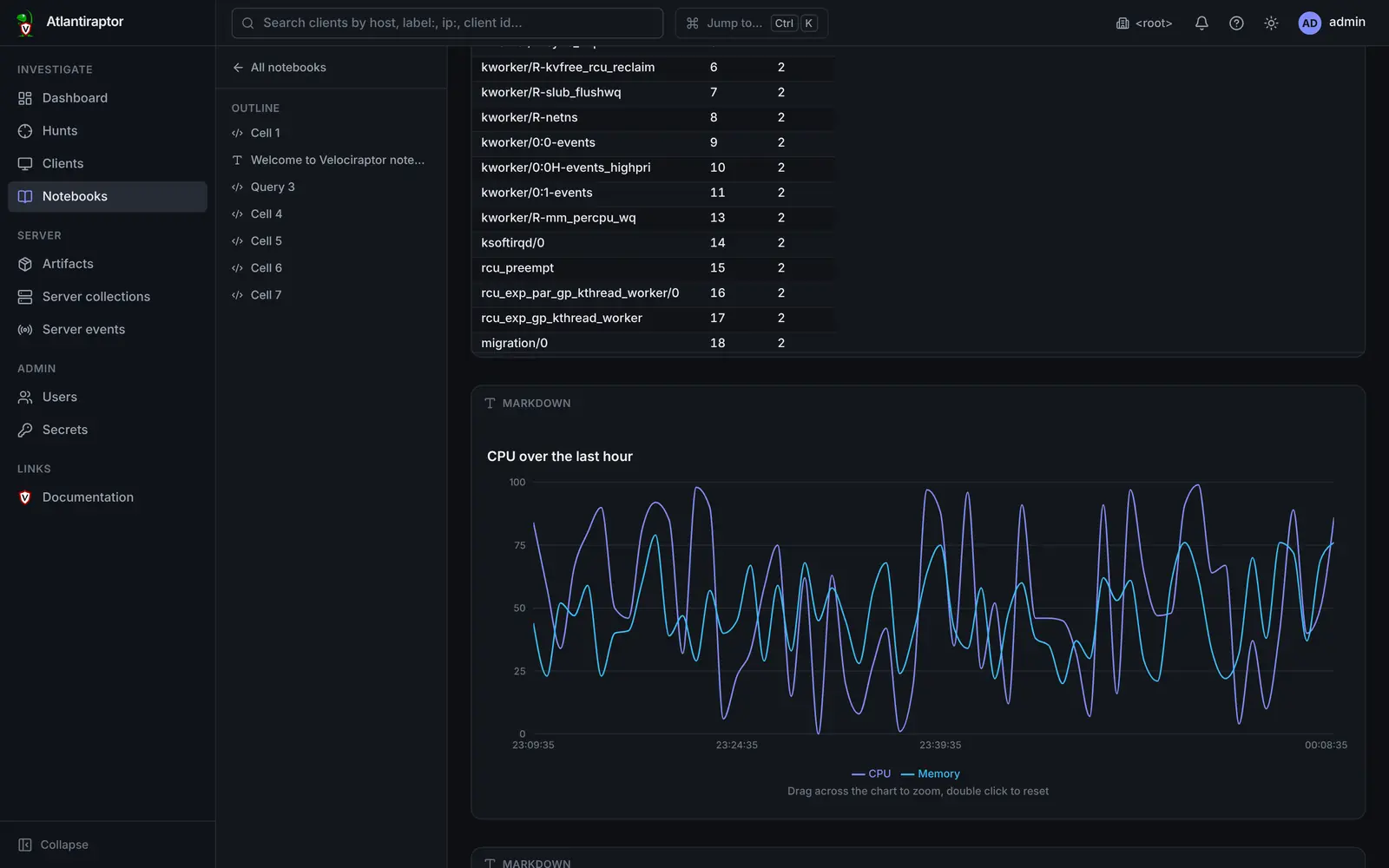
Markdown cells can run queries and show their results with template functions:
## Processes per host

{{ Query "SELECT Hostname, count() AS Processes FROM source() GROUP BY Hostname" | BarChart }}
| Function | Shows |
|---|---|
Table |
A table |
BarChart, LineChart, ScatterChart |
A chart; the first column is the X axis |
TimeChart |
A chart over time; the first column is a timestamp |
Timeline "name" |
A saved timeline (see below) |
Charts can be zoomed by dragging across them; double click to reset.
Timelines
A timeline merges events from several sources onto one time axis, for example process starts, logons and file changes from one host. Build one in VQL:
SELECT timeline_add(timeline="incident", name="Processes",
    query={ SELECT * FROM source(artifact="Windows.System.Pslist") },
    key="CreateTime")
FROM scope()
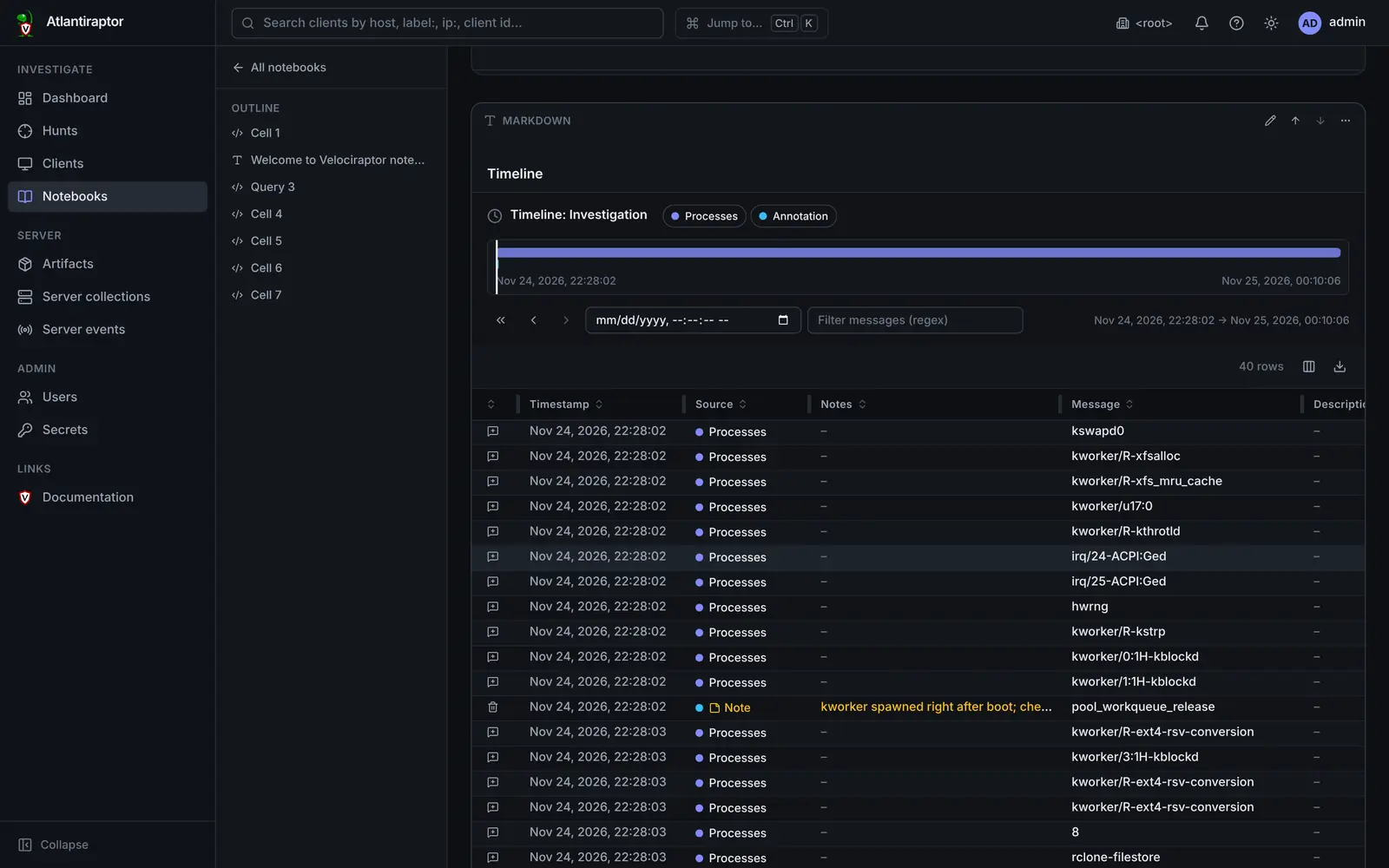
and show it in a Markdown cell with {{ Timeline "incident" }}. In the
timeline view, click a time to jump to it, filter messages, and add notes to
events (Add a note to this event): notes appear as their own source.
Exporting
Export notebook prepares:
- As an HTML report: the notebook as one page with its tables and charts, for a report or a ticket,
- As a zip with all data: the notebook and every result it shows.
Exports are listed under the notebook’s Exports and kept on the server.
Permissions
Running VQL in notebooks needs the NOTEBOOK_EDITOR permission (roles
analyst and above). Notebook queries run with your own permissions, so a
notebook can’t be used to do more than you could do yourself.