
Updating Atlantiraptor
Automatic server updates
Atlantiraptor servers on Windows keep themselves up to date. They check the GitHub releases of Atlantiraptor, and when a newer signed release is available they install it and restart. The settings and status are on Server settings > Server updates.
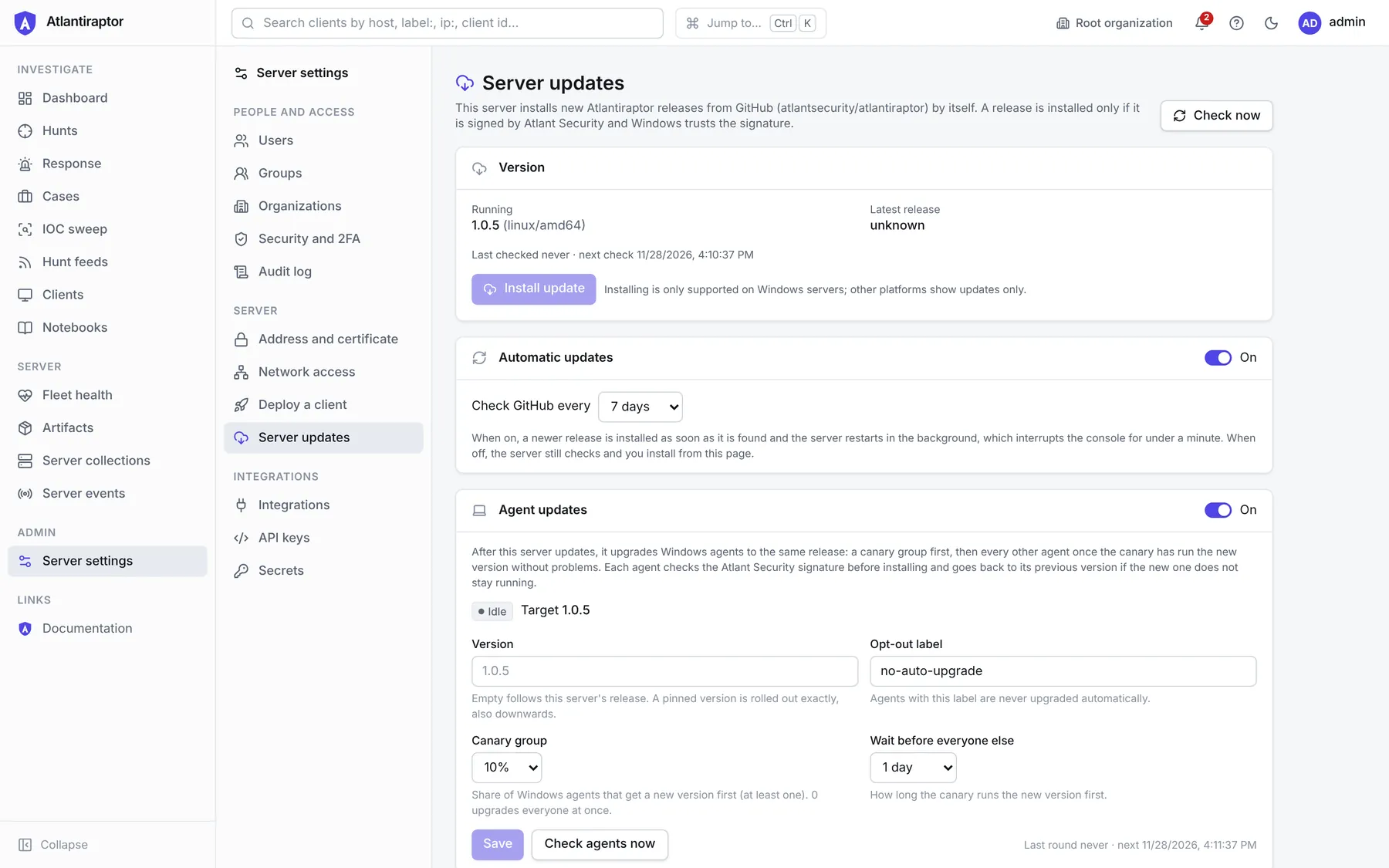
What is checked before an install
The server installs a release only if all of these hold:
- The release comes from the
atlantsecurity/atlantiraptorrepository on GitHub. This is fixed in the program; nothing at run time (configuration, console, API) can point it elsewhere. - The download matches the SHA-256 listed in the release’s
SHA256SUMSfile. - It carries an Authenticode signature from Atlant Security EOOD, issued by Microsoft’s code signing CA and trusted by Windows, with revocation checks.
- It starts and reports the version number of the release.
Only then is the new program swapped in. The previous program is kept until the next start.
Settings
| Setting | Default | Notes |
|---|---|---|
| Install updates automatically | On | Off: the page still shows when an update is available, and an administrator installs it with one click. |
| Check GitHub every | 7 days (168 hours) | Between 1 hour and 30 days. Check now checks at once. |
Every install and every settings change is written to the
audit log. Setting the environment
variable ATLANTIRAPTOR_DISABLE_AUTO_UPDATE=1 on the server turns automatic
installs off regardless of the setting (for example during a change
freeze).
Development builds
A binary built from source without a release version is a development build. It never installs updates automatically. To move a development build onto the release track, install a release once from Server settings > Server updates.
Other platforms
Installing updates is supported on Windows servers. On Linux and in containers the page shows when an update is available; upgrade as described below.
Making the server reach GitHub
The server needs outbound HTTPS to api.github.com, github.com and
*.githubusercontent.com (downloads are redirected there); the updater
refuses any other host. It uses the proxy from the server process’s
environment (HTTPS_PROXY), if one is set.
Manual server upgrades
- Read the release notes.
- Back up the configuration and datastore.
- Install the new program:
- Windows service: in PowerShell as administrator, check the new
program’s signature, then run it with the installed configuration:
.\Atlantiraptor.exe --config 'C:\Program Files\Atlantiraptor Server\AtlantiraptorServer.config.yaml' server_service install. It stops the service, replaces the program, and starts the service again (see Installing the server). - Linux package: build a new package from the new binary and install
it over the old one (
dpkg -iorrpm -U). - Docker: rebuild the image and recreate the container.
- Windows service: in PowerShell as administrator, check the new
program’s signature, then run it with the installed configuration:
- Check that the console loads and agents reconnect (the dashboard’s connected clients count recovers within a few minutes).
The new server reads the existing configuration and datastore. Keep the backup until you are satisfied with the new version: going back to an older version after a newer one has written to the datastore is not tested.
Upgrading agents
Automatic agent upgrades (Windows)
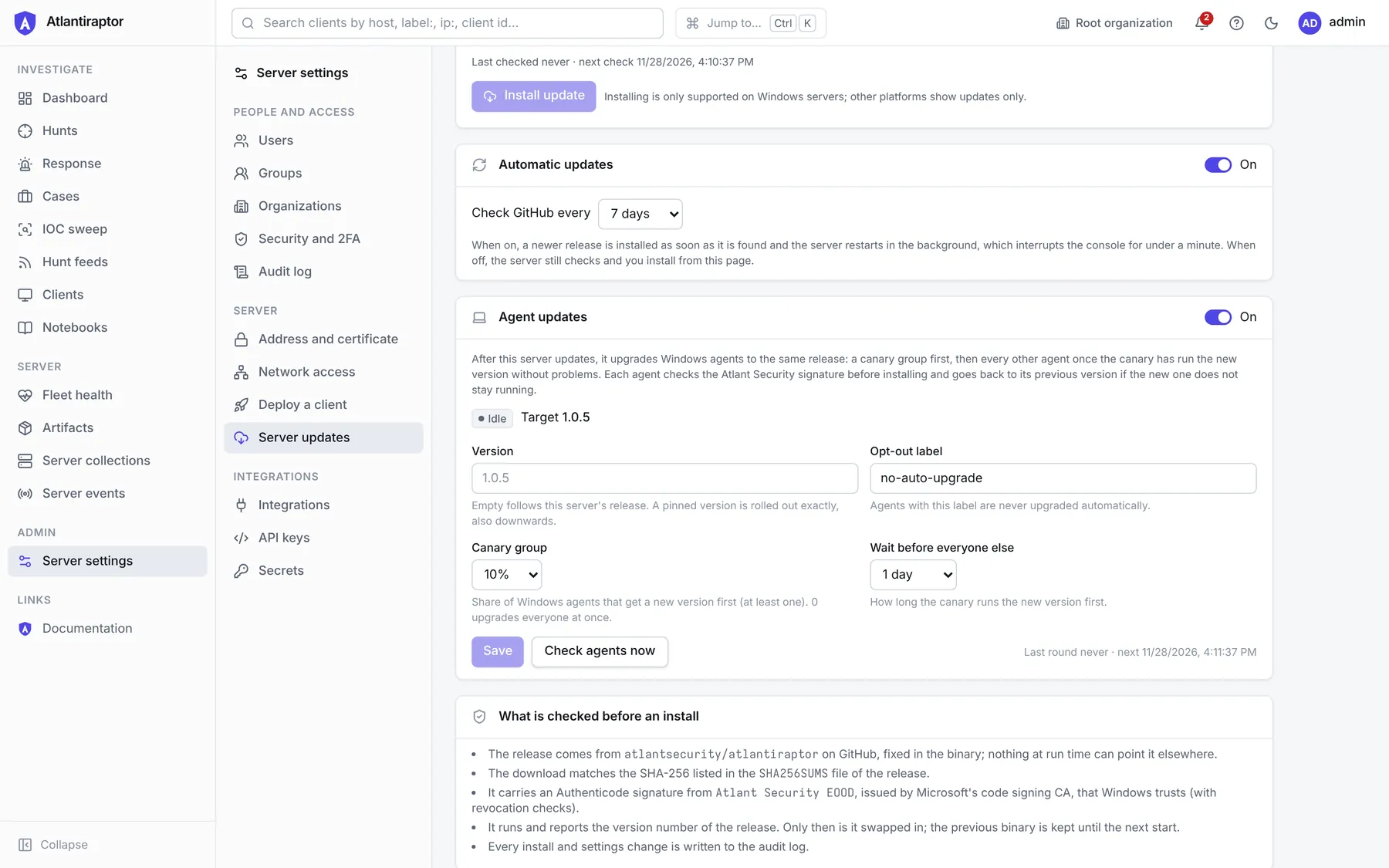
After the server updates itself, it brings Windows agents to the same release. The status and settings are on Admin > Server updates > Agent updates.
- The server downloads the Windows binary of that release from GitHub,
checks it against the release’s
SHA256SUMSand the Atlant Security signature (a Windows server also has Windows verify the signature), and hosts it in every org as theAtlantiraptorAgentWindowstool. If GitHub is unreachable, a Windows server running exactly that release uses its own binary (the agent and server are one program). - A canary group gets the upgrade first: 10% of the Windows agents by default (at least one), chosen anew for each release.
- After the wait (24 hours by default), if at least one canary agent runs the new version and no more than 20% of the canary upgrades failed, every other Windows agent gets it. If more failed, the rollout pauses and the page says why; Resume for everyone continues it.
The server sends the upgrade only to agents seen in the last 15 minutes, at most 200 every 5 minutes, and each agent waits up to 5 minutes at random before downloading. Offline agents are upgraded when they reconnect.
On the computer, Admin.Client.Upgrade.Atlantiraptor:
- does nothing if the agent already runs the target version;
- downloads the binary from your server and checks its SHA-256;
- refuses it unless Windows trusts its Authenticode signature from Atlant Security EOOD;
- copies it into the agent’s folder and runs it once to check the
signature and version again; then, detached from the agent, it stops the
Atlantiraptorservice, swaps the program and starts the service. If the new agent does not stay running for 30 seconds, the previous program is put back. Each step is logged toagent-upgrade.login the agent’s folder.
The computer keeps its client ID, configuration and writeback. An agent that still reports its old version half an hour after the upgrade ran, or whose collection failed, is tried again 6 hours later, up to three times; then it is listed under Agents whose upgrade failed with the reason (Retry failed starts over).
| Setting | Default | Notes |
|---|---|---|
| On/off | On | Off stops sending upgrades; the counts still show. ATLANTIRAPTOR_DISABLE_AGENT_UPDATE=1 on the server turns it off regardless. |
| Version | Empty: follow the server | Pin a release to roll out exactly that version, also downwards. Without a pin, agents newer than the server are left alone. A development server upgrades agents only with a pinned version. |
| Canary group | 10% | 0% upgrades everyone at once. |
| Wait before everyone else | 1 day | 0 moves on as soon as a canary agent runs the new version. |
| Opt-out label | no-auto-upgrade |
Label clients that must never be upgraded automatically. |
Every rollout and settings change is written to the audit log.
Agents report their Atlantiraptor release (for example Atlantiraptor 1.0.6) from the first release with automatic upgrades on. Older agents report the Velociraptor version they are based on (velociraptor 0.77.4); they are upgraded like any other.
Pinning a version older than the first release with automatic upgrades does not work: the upgrade step lives in the new program.
Linux and macOS agents, and manual upgrades
Releases do not carry signed Linux or macOS binaries yet, so those agents are not upgraded automatically. Reinstall them with the commands under Clients > Deploy a client, or:
- Windows: deploy the new MSI with Intune, Group Policy or your software deployment tool. It upgrades in place and keeps the client ID.
- From the console: Fleet health lists agents behind the newest
version in your fleet, and can upgrade a selection by running
Admin.Client.Upgrade.WindowsorAdmin.Client.Upgrade.Debianwith the package you uploaded as that artifact’s tool. See Fleet health. - Linux: install the new package with your configuration management.
Built-in artifacts after an upgrade
Built-in artifacts come with the program, so an upgrade brings updated
artifacts. Your custom artifacts are kept. If a built-in artifact you rely
on was renamed or removed, the server logs it; copy the old version into a
custom artifact if you still need it (see Server.Import.PreviousReleases).