
Hunts
A hunt runs the same artifacts on many clients. It is a collection template: while the hunt is running, every client it targets that comes online gets its own collection, and the hunt gathers all their results in one place. Use hunts to answer fleet-wide questions (“which machines have this file?”, “who ran this binary?”) and to collect the same evidence from a group of hosts.
How a hunt reaches clients
When you start a hunt, the server schedules it for every targeted client that is online. Clients that are offline are not forgotten: as long as the hunt has not expired, a client that connects later gets the collection then. Each client runs a hunt once. This is why a hunt has an expiry: it decides how long latecomers can still join.
Stopping a hunt stops scheduling new clients. Collections already running on clients finish, and their results are kept.
Starting a hunt
Open Hunts and click New hunt.
Artifacts
Search for artifacts and pick one or more. Filters narrow the list by operating system and category. Set each artifact’s parameters; every parameter has a default.
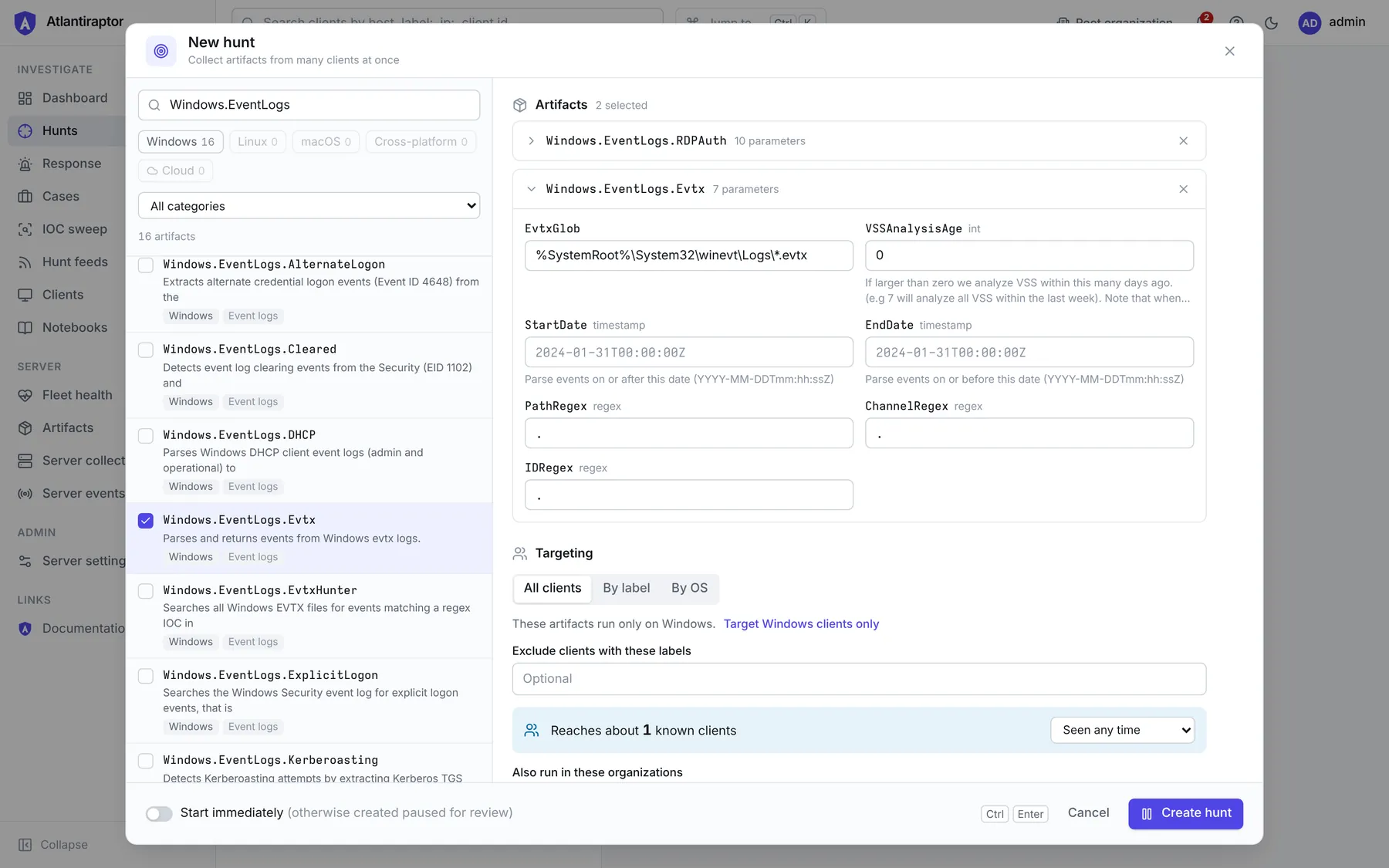
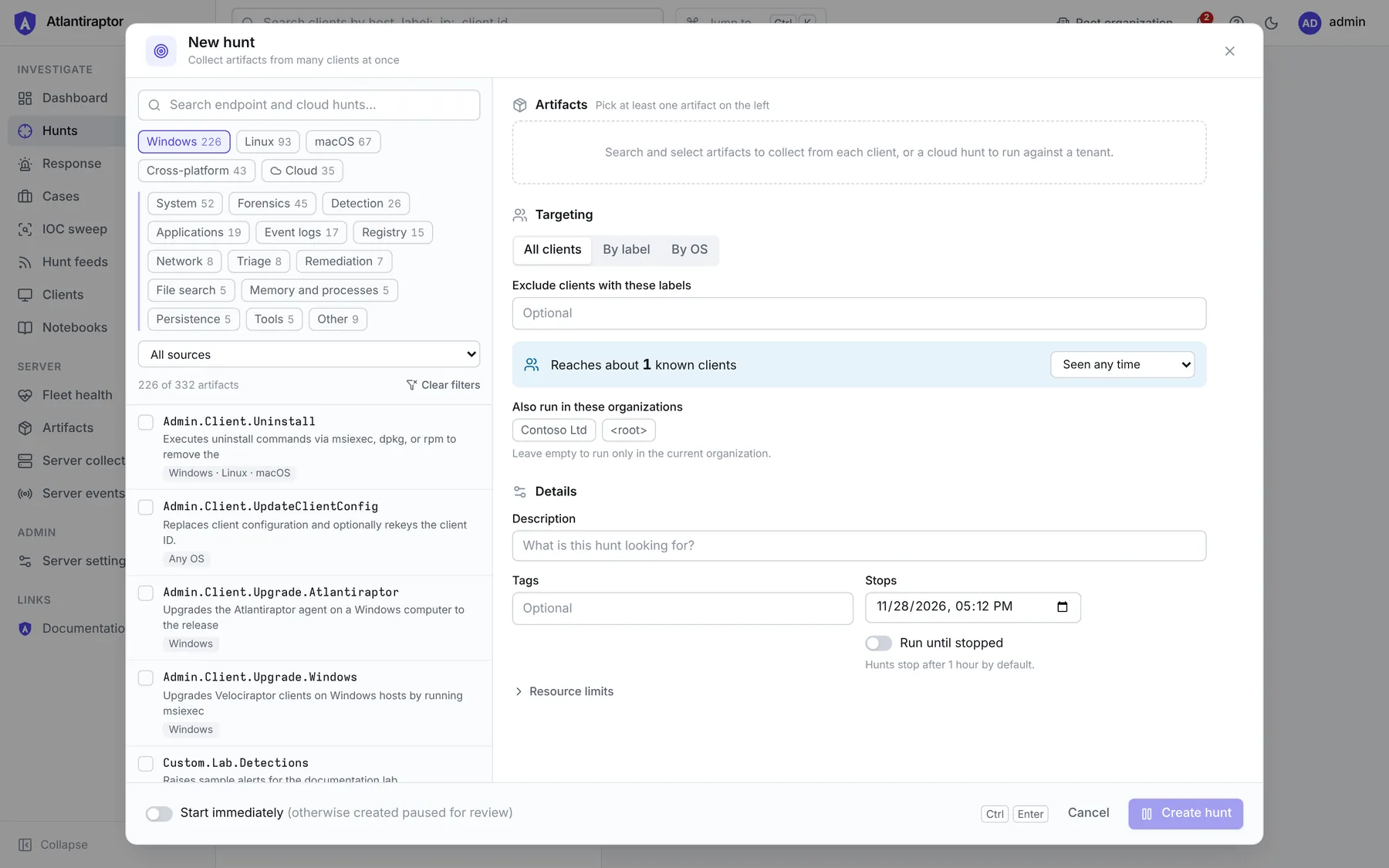
Artifacts that query cloud tenants run on the server instead of on clients (see Cloud breach hunting). When you pick only cloud artifacts the dialog shows Runs on the server and Run cloud hunt starts one server collection.
Targeting
| Mode | Runs on |
|---|---|
| All clients | Every client |
| By label | Clients that have any of the labels you enter |
| By OS | Windows, Linux or macOS clients |
In every mode you can also:
- Exclude clients with these labels, for example
do-not-touchor machines already investigated, - limit to clients seen recently (Active in last day / week / month), so the hunt doesn’t wait for machines that are long gone.
Labels are the main way to target. See Labels.
Organization administrators with several orgs see Also run in these organizations: the hunt is copied into each org you pick. Leave it empty to run only in the current org. See Organizations.
Schedule and limits
- Stops: when the hunt expires. The default is 1 hour from now (an
administrator can change it with
defaults.hunt_expiry_hours). Enter a later time for hunts that should wait for laptops to come online. - Run until stopped keeps the hunt open until you stop it. Use it for hunts that every new machine should run, for example an inventory.
- Timeout (s): how long each client’s collection may run (600 by default).
- Max rows and Max upload (MB): per client. A client that reaches a limit stops collecting and reports it.
- CPU limit (%): keep the agent below this share of one CPU.
- Urgent: skip the client’s collection queue: start at once even if the client is busy with other collections.
See Load on endpoints for choosing limits.
Create or start
By default a new hunt is created paused, so you (or a colleague) can review it before it runs. Turn on Start immediately to create and start it in one step. Ctrl+Enter submits the dialog.
Tip Try a new or heavy artifact on one machine first (as a collection), then on a label of a few machines, before hunting the whole fleet.
The hunts list
Tabs filter hunts as All, Running, Paused, Done and Archived, and the filter box searches name, artifact, tag and creator. Select several hunts to Run, Stop, Archive or Delete them together.
A hunt’s page
| Tab | Shows |
|---|---|
| Overview | Artifacts and parameters, targeting (included and excluded labels, orgs), schedule and limits, and counts: scheduled, in progress, succeeded, failed, clients with results, result rows, files collected |
| Results | One table per artifact source, with every client’s rows and the client it came from. It updates live while the hunt runs |
| Files | Files uploaded by clients |
| Errors | Clients whose collection failed, with the error |
| Clients | Every client the hunt was scheduled on, with its state; open one to see its collection |
| Exports | Zip archives prepared from the hunt |
| Notebook | A notebook for the hunt, prefilled with a cell per source |
From the menu: Edit (description, tags, expiry), Copy (a new hunt with the same artifacts and settings), Stop, Archive and Delete….
Reading results
Results tables work like everywhere else in the console: sort, filter, pivot on any value and export the table as CSV or JSON. The client ID and host name columns link to the host page.
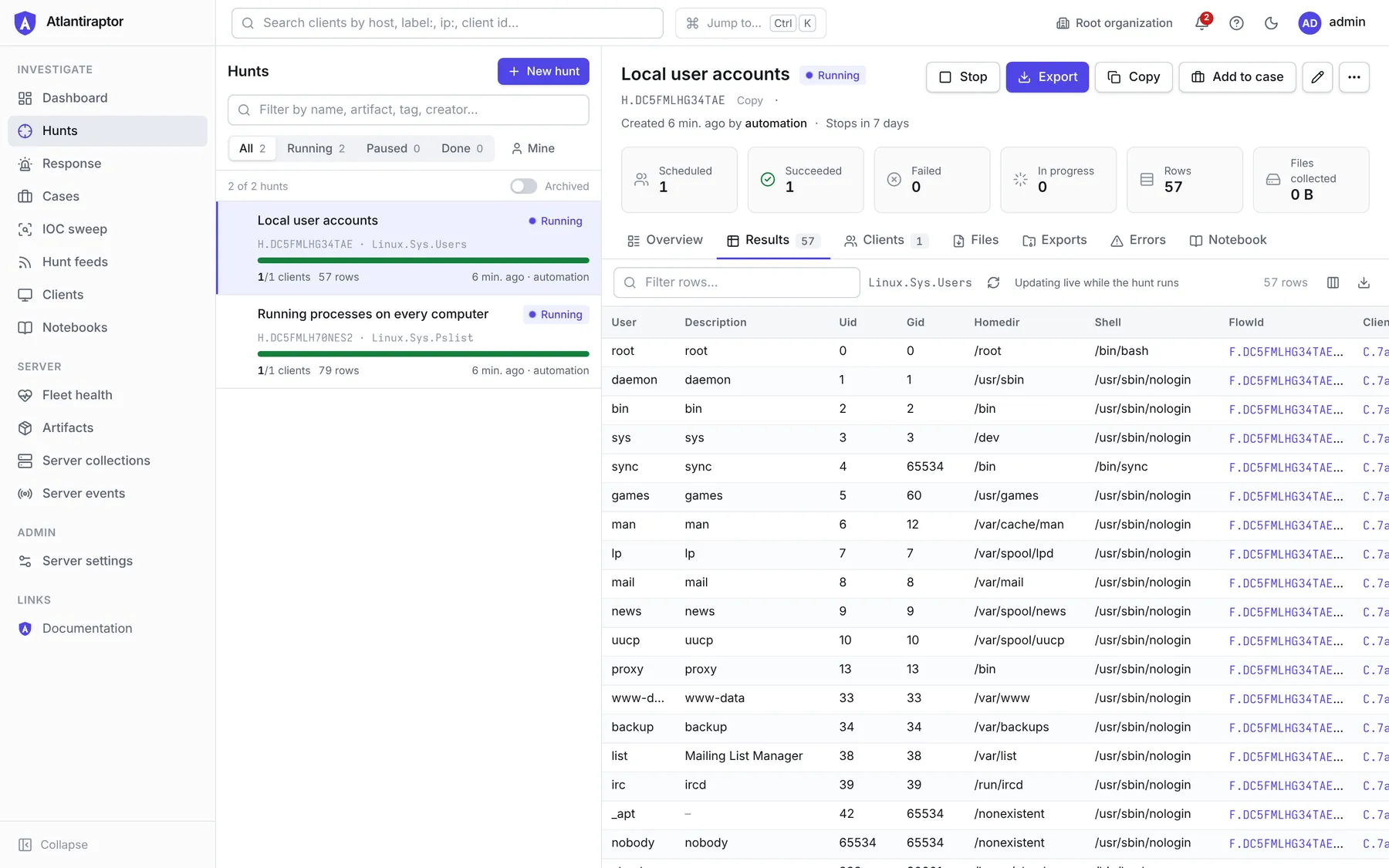
To combine, count or stack results across hosts, use the hunt’s notebook. For example, count how many hosts have each autorun entry, most rare first:
SELECT Name, count() AS Hosts
FROM hunt_results(hunt_id=HuntId, artifact="Windows.Sys.StartupItems")
GROUP BY Name
ORDER BY Hosts
Stacking like this is how you find the one machine that is different.
Exports
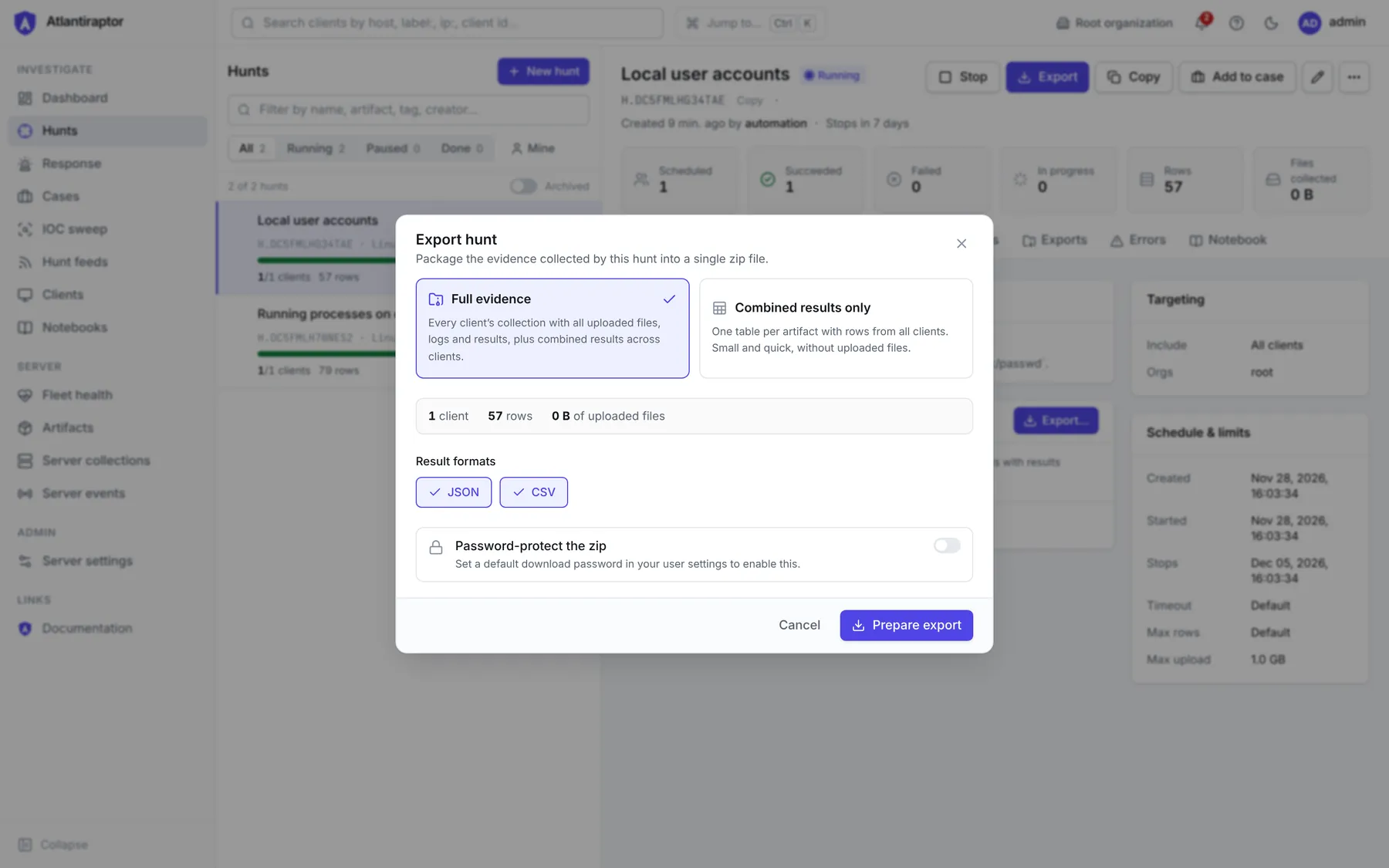
Export hunt… builds a zip with every result row, log and uploaded file of every client, in the same layout as a collection export. It can be password protected with your downloads password. Exports are kept on the server until the hunt is deleted. See Exporting evidence.
Clients that did not run the hunt
- Offline: they run it when they next connect, if the hunt has not expired. Use a later expiry or Run until stopped for laptops.
- Not targeted: check labels and the OS filter on the Overview.
- Failed: see Errors and the collection’s log. A common cause is a timeout or a row or upload limit.
To retry, fix the cause and Copy the hunt, targeting a label such as
retry that you put on the failed clients.
Archiving and deleting
Archive hides a finished hunt from the default list but keeps its
data. Delete… stops the hunt and permanently removes all the
collections and files it produced on every client (needs the
DELETE_RESULTS permission). See
Storage and data retention.
Hunts in VQL and the API
hunt(artifacts=[...], expires=..., include_labels=[...])creates a hunt from a notebook or server artifact;hunt_results(),hunt_flows()andhunts()read them. See the VQL reference.- Scripts and SIEMs can start hunts through the REST API with an API key.
Permissions
Starting a hunt needs the START_HUNT permission (roles investigator,
hunter, responder and administrator). Hunting with artifacts that need extra permissions (for
example EXECVE for shell artifacts) needs those too. See
Permissions.