
Fleet health
Fleet health (under Server in the sidebar) shows what needs attention in your deployment itself, rather than on your endpoints.
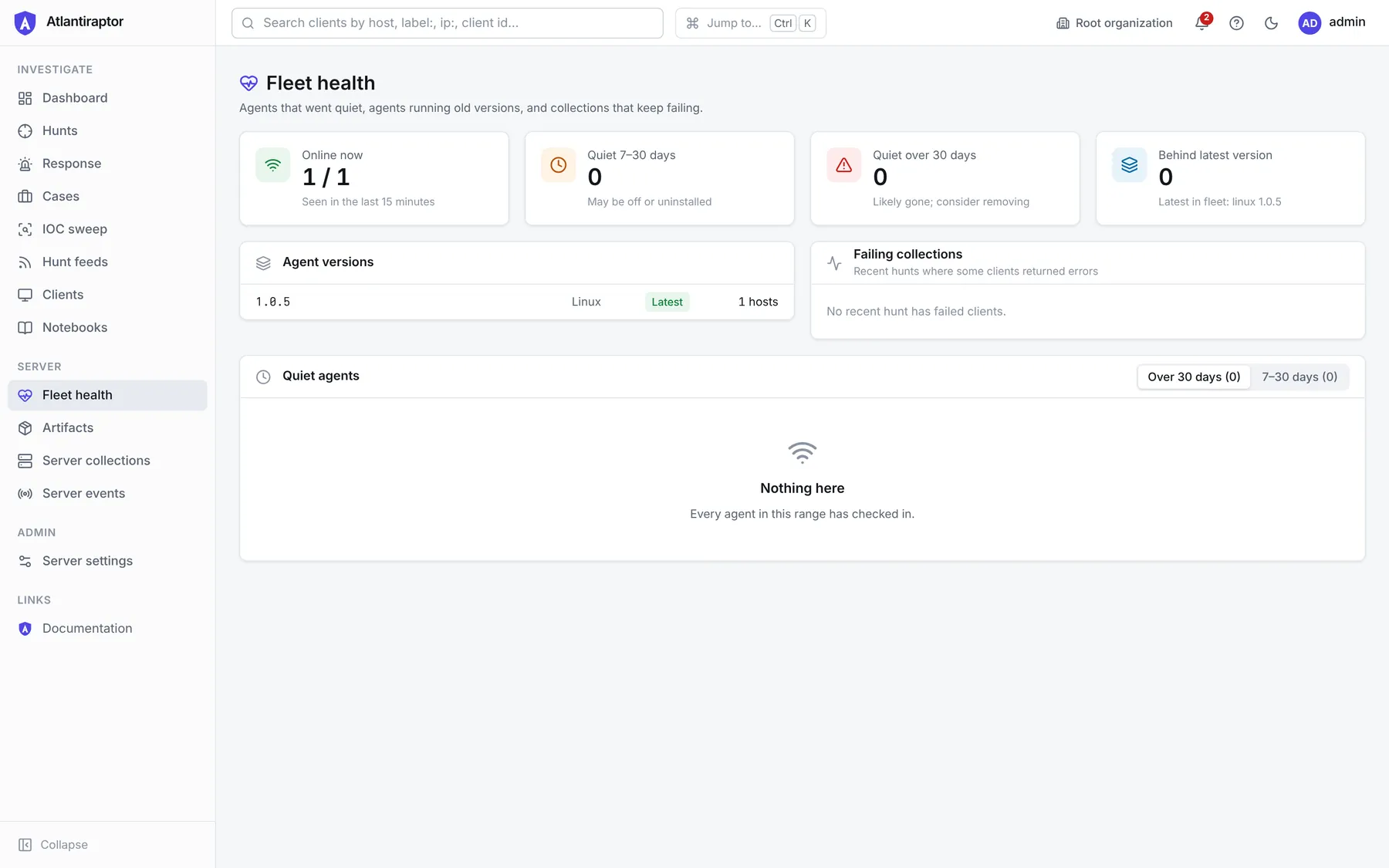
Agents that went quiet
Clients are grouped by when they last checked in:
| Group | Meaning |
|---|---|
| Seen in the last 15 minutes | Online |
| Quiet for 7 to 30 days | May be switched off, on holiday, or uninstalled |
| Quiet over 30 days | Likely gone; consider removing |
A machine that is on but not checking in usually has a network or certificate problem; see Agent problems. Machines that were decommissioned can be deleted from Clients so they don’t clutter hunts and statistics.
Agent versions
A chart shows how many agents run each version, and lists the agents behind the latest version in your fleet. To upgrade them:
- Click Upgrade N Windows (or Linux (Debian)) next to the outdated agents of that platform.
- The dialog shows the package that will be installed. It is the tool of
the upgrade artifact for that platform:
Admin.Client.Upgrade.Windows(toolWindowsMSI) orAdmin.Client.Upgrade.Debian. If no package is set, upload your signed MSI or package for that tool first, under Artifacts, the upgrade artifact, Tools. - Enter a reason (recorded in the audit log) and confirm.
Each host downloads and installs the package, then restarts its agent. The client ID stays the same.
Hunts with failing clients
Hunts where some clients returned errors are listed with the number of failures. Open one to see the error per client. Common reasons are a missing tool, an artifact that does not support that operating system, or a timeout; see Collection and hunt problems.