
Check a cloud account for a breach
Attackers often go after accounts rather than computers: stolen passwords, mail forwarding rules, malicious app consents, new access keys. Atlantiraptor checks your cloud accounts from the server, read-only: it changes nothing in them.
| Provider | Finds, for example |
|---|---|
| Microsoft 365 and Entra ID | Sign-ins from a new country or impossible travel, forwarding rules, risky app consents, new admins |
| Google Workspace | Suspicious sign-ins, forwarding, admin changes |
| Okta | Password spraying, MFA fatigue, admin changes |
| AWS | Root account use, new access keys, disabled logging |
1. Give Atlantiraptor read access
Each provider needs its own read-only access: an app registration in Microsoft Entra ID, a service account in Google, an API token in Okta, or an IAM role in AWS. Follow the steps on the provider’s page: Microsoft 365, Google Workspace, Okta or AWS.
2. Store the credentials
- Open Secrets in the sidebar.
- Add a secret of the provider’s type, for example Microsoft 365
Creds, give it a name such as
m365-contoso, and paste in the values from step 1.
The credentials stay on the server and are never shown again.
3. Run the check
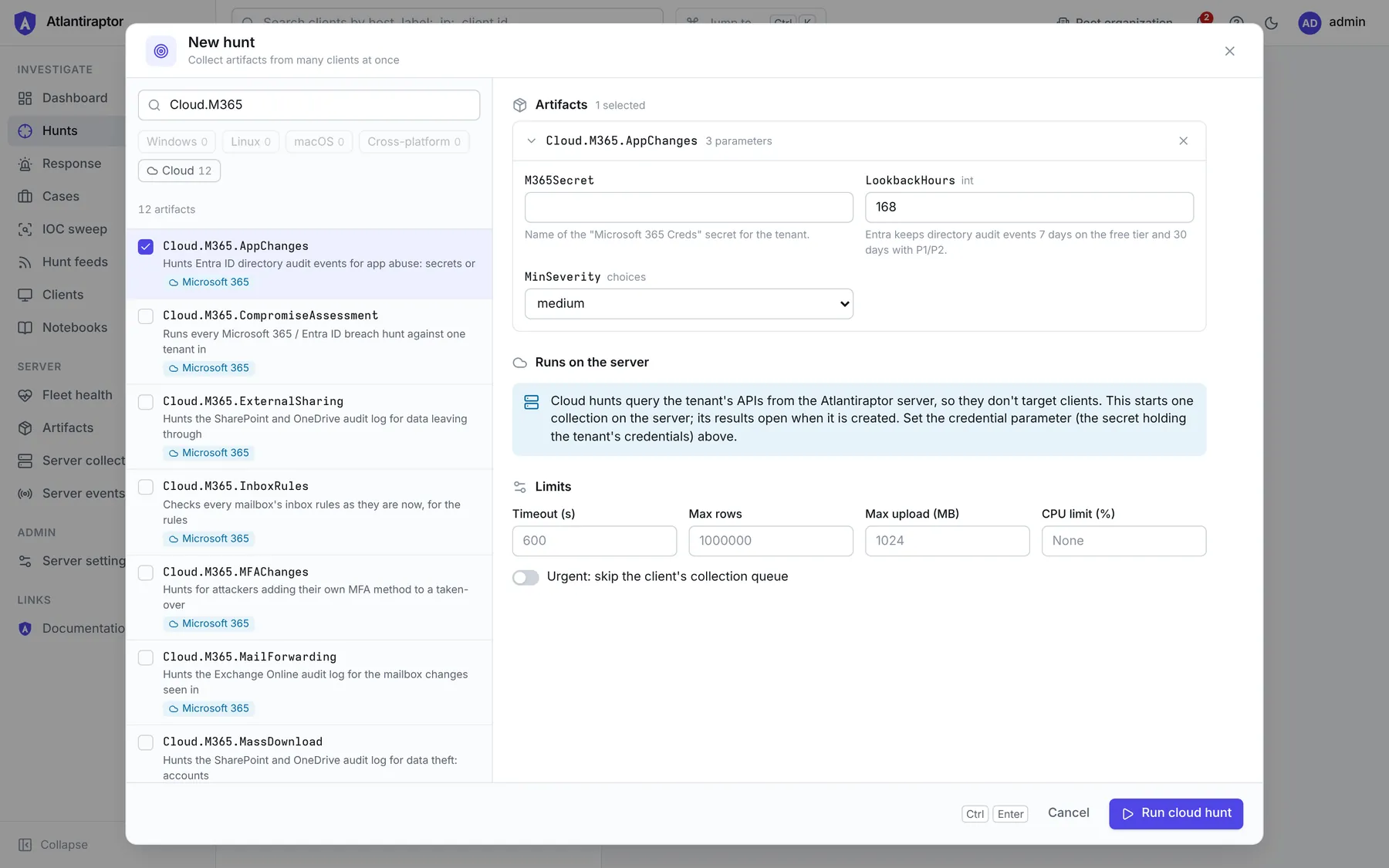
- Open Hunts and click New hunt.
- Search for
CompromiseAssessmentand select the one for your provider, for exampleCloud.M365.CompromiseAssessment. It runs all of that provider’s checks at once. - Click it and set its credentials setting (M365Secret,
GWSSecret, OktaSecret or AWSSecret) to the secret’s name,
m365-contoso. - Click Run cloud hunt.
Every finding has the same columns, whichever the provider: time, severity, what was detected, user, IP address, location, device and details.
4. Keep watching
Providers only keep their logs for a short time, as little as 7 days. To keep them on your server and get alerts as things happen, start the provider’s monitor. See Cloud breach hunting.