
Deploying with Intune
The console builds everything Intune needs: a Win32 app package
(.intunewin) that contains the install script with your server’s client
configuration, and a detection script. You don’t need Microsoft’s Win32
Content Prep Tool.
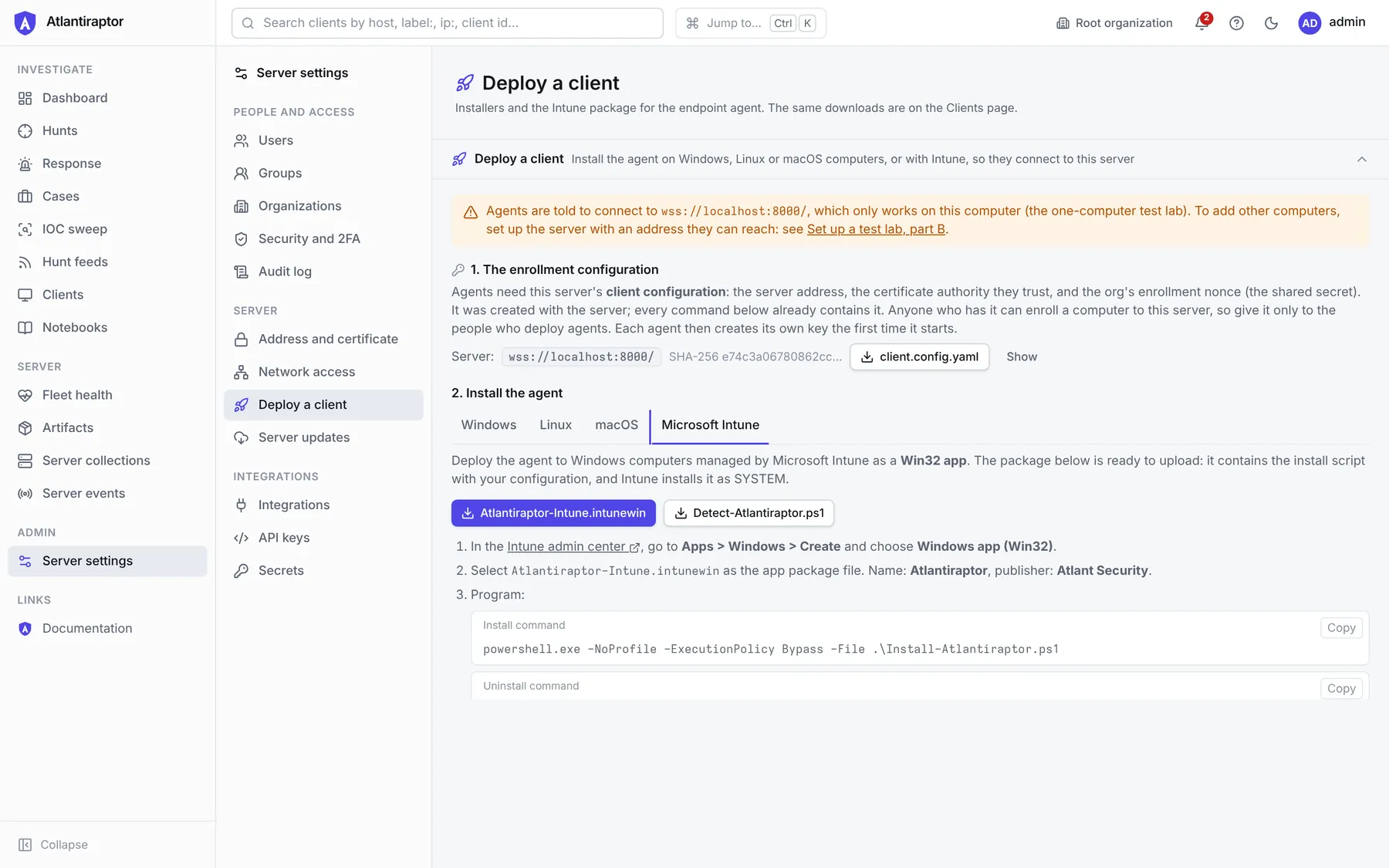
1. Download the package
In the console, open Clients, expand Deploy a client at the bottom of the page and choose the Microsoft Intune tab. Only server administrators see this section. Download:
Atlantiraptor-Intune.intunewin: the app package. It containsInstall-Atlantiraptor.ps1, the installer with your configuration, which the install and uninstall commands below run. You don’t download that script separately.Detect-Atlantiraptor.ps1: the detection script, which Intune runs to check whether the agent is installed. It is not part of the package; you upload it in the detection rules.
Each download is recorded in the server’s audit log. The package contains your client configuration, so treat it like a password: anyone who has it can enroll a computer to your server.
2. Add the app in Intune
In the Intune admin center, go to Apps > Windows > Create, choose Windows app (Win32), and fill in:
| Setting | Value |
|---|---|
| App package file | Atlantiraptor-Intune.intunewin (Intune shows Install-Atlantiraptor.ps1 as its setup file) |
| Name / Publisher | Atlantiraptor / Atlant Security |
| Install command | powershell.exe -NoProfile -ExecutionPolicy Bypass -File .\Install-Atlantiraptor.ps1 |
| Uninstall command | powershell.exe -NoProfile -ExecutionPolicy Bypass -File .\Install-Atlantiraptor.ps1 -Uninstall |
| Install behavior | System |
| Device restart behavior | No specific action |
| Requirements | 64-bit, Windows 10 1607 or later |
| Detection rules | Use a custom detection script: Detect-Atlantiraptor.ps1, Run script as 32-bit process on 64-bit clients = No |
| Assignments | Your device group, under Required |
Intune installs the app within a few hours (sooner if you sync the device from Devices > [device] > Sync). The computer then appears in the console under Clients.
What the script does
Install-Atlantiraptor.ps1 installs the agent exactly like the MSI: the
Windows service Atlantiraptor, running as LocalSystem, in
C:\Program Files\Atlant Security\Atlantiraptor\, readable only by SYSTEM
and administrators. It:
- downloads
Atlantiraptor-windows-amd64.exefrom the GitHub release that matches your server’s version (or usesAtlantiraptor.exeif it is next to the script), - refuses to install it unless it is Authenticode-signed by Atlant Security EOOD and Windows trusts the signature,
- writes the client configuration, creates and starts the service.
On a computer that already has the agent it changes nothing, so it is safe
to run again. -Reinstall replaces the agent (the computer keeps its client
ID), and -Uninstall removes it, whether it was installed by the script or
by the MSI.
Computers need to reach github.com to download the program. If they
can’t, add Atlantiraptor.exe to the package yourself: put it in a folder
with Install-Atlantiraptor.ps1 (downloaded from the Windows tab) and
run Microsoft’s
Win32 Content Prep Tool:
IntuneWinAppUtil.exe -c .\AtlPackage -s Install-Atlantiraptor.ps1 -o .\out
Other ways to use Intune
- Platform script: upload
Install-Atlantiraptor.ps1(from the Windows tab) under Devices > Scripts and remediations > Platform scripts, with Run this script using the logged on credentials = No and Run script in 64 bit PowerShell Host = Yes. Simpler, but Intune then can’t report whether the agent is installed or uninstall it. - MSI: an MSI installer can be added as a Line-of-business app. The MSI and the script install the same way, so you can switch between them.
If it doesn’t work
In Intune, the app’s Device install status shows the script’s error.
On the computer, the Intune Management Extension log
(C:\ProgramData\Microsoft\IntuneManagementExtension\Logs\AppWorkload.log)
has the full output. Common causes:
- Refusing to install …: signature status: the download was blocked or
changed by a proxy; put
Atlantiraptor.exein the package as above. - The service runs but the computer never appears: it can’t reach the server address shown in Deploy a client. See Agent problems.